
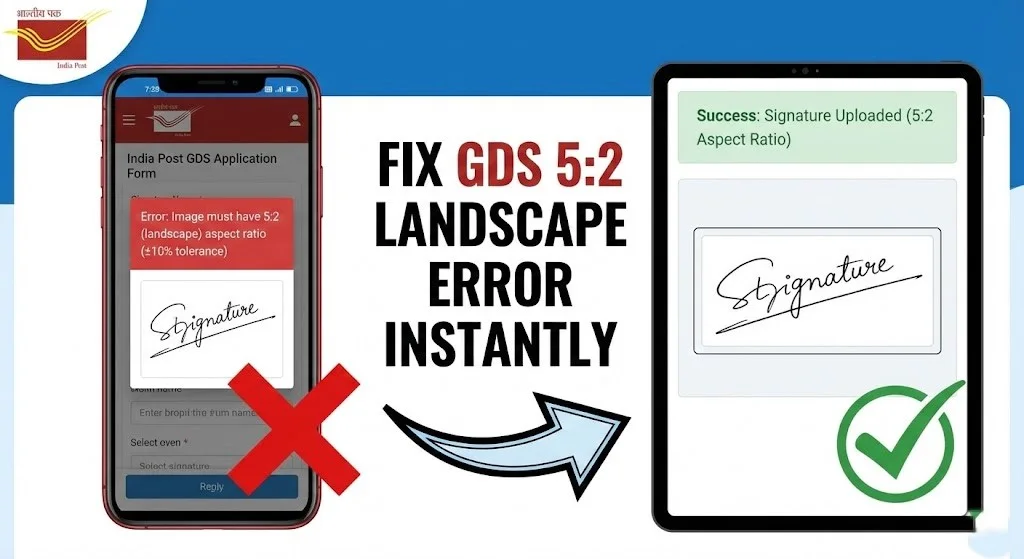
Don’t let a technical glitch cost you a government job.
The India Post Gramin Dak Sevak (GDS) recruitment is one of the most popular government exams in the country, attracting millions of applicants every cycle. However, with high competition comes strict scrutiny. Thousands of applications are rejected every year during the Document Verification (DV) stage, not because the candidate wasn’t qualified, but because of simple file upload errors.
If you are trying to fill out the form right now, you are likely stuck on the signature upload step, staring at a frustrating red error message: “Image must have 5:2 (landscape) aspect ratio (±10% tolerance).”
You are not alone. This is the #1 technical issue facing applicants in 2026.
In this comprehensive guide, we will explain exactly what this error means, why your normal mobile crop isn’t working, and how to use a GDS Signature Resizer to fix it in seconds.
1. Understanding the “5:2 Landscape” Error
Most online forms (like SSC or Railways) are flexible. They accept any rectangular image as long as it is small enough. India Post is different. Their system has a hard-coded mathematical requirement for your signature.
When you see the error image must have 5:2 (landscape) aspect ratio (±10% tolerance), it means the shape of your image is wrong.
What does 5:2 mean?
Imagine a rectangle.
- 5 represents the Width.
- 2 represents the Height.
The width must be exactly 2.5 times the height.
- Example: If your image is 200 pixels wide, it must be roughly 80 pixels tall.
- The Problem: Most mobile phone cameras take photos in 3:4 or 9:16 ratios. When you crop a signature on your phone gallery, you are likely guessing the shape. If you crop it to 200×100 pixels (which is a 2:1 ratio), the portal will reject it immediately because it does not meet the 5:2 landscape requirement.
The system allows a small margin of error (±10% tolerance), but it is very strict. If you are outside this “Safe Zone,” your upload fails.
2. The Solution: How to Fix the 5:2 Ratio Instantly
You do not need to sit with a calculator or learn Photoshop to figure out pixels. The easiest way to solve this is by using a dedicated tool that locks the cropper to the correct ratio.
Use the GDS Signature Resizer
We have built a specific tool that solves this exact problem.
- Step 1: Go to our India Post GDS Signature Resizer.
- Step 2: Upload your signature photo.
- Step 3: The tool automatically provides a cropping box locked to the 5:2 (landscape) aspect ratio (±10% tolerance). You cannot make a mistake because the box won’t let you select the wrong shape.
- Step 4: Click “Convert.” The tool will resize the image and ensure it is also within the correct file size limit.
This is the fastest way to upload a clear signature in JPG format without seeing that annoying error message again.
3. GDS Signature Size: The Confusion (10KB vs 20KB)
Another major reason for rejection is the file size. There is a lot of confusion regarding the GDS signature size because the rules have been updated.
- Old Rule: 10KB to 20KB.
- The “New” Error: Many users in the 2026 cycle are reporting a new error message: “Signature size should be at least 20KB.”
This puts applicants in a difficult position. If you make the file too small (10KB), it’s rejected. If you make it too big, it’s rejected.
The “Safe Zone” Strategy
To be 100% safe, you should aim for a file size between 20KB and 50KB (if the portal allows) or strictly adhere to the specific limit shown on your screen.
- Our GDS Signature Resizer has a smart feature that “Upscales” your image if it is too small, ensuring it crosses the 20KB barrier while keeping the image 5:2 landscape format intact.
4. Don’t Forget the Photo: The 4:5 Portrait Rule
While you are fighting with the signature, don’t ignore your passport photo. The India Post GDS portal has an equally strict rule for the applicant’s photograph.
- The Rule: Image must have 4:5 (portrait) aspect ratio.
- The Mistake: Uploading a square (1:1) photo or a standard 3:4 mobile photo.
Just like the signature, if the aspect ratio is wrong, the “Upload” button will not work. You need a photo that is slightly taller than it is wide (e.g., 200 pixels wide by 250 pixels tall).
If you are facing issues with your photo upload, use our dedicated India Post GDS Photo Resizer. It fixes the 4:5 ratio error and ensures your face is centred and clearly visible.
5. Other Common GDS Form Mistakes to Avoid
Apart from the 5:2 landscape image error, here are three other technical reasons why forms get rejected during scrutiny.
A. Blurry or “Pixelated” Images
When you compress an image to meet the GDS signature size requirements, the quality often drops. If the DV officer cannot read your signature clearly, they will mark your candidature as “Invalid.”
- Fix: Always use a tool that uses “Smart Compression” (like ours) rather than just reducing quality. A clear, sharp signature is mandatory.
B. Signature in Capital Letters
This is a legal rule, not a technical one. Your signature must not be in full BLOCK LETTERS (e.g., “RAHUL SHARMA”).
- Correct: “Rahul Sharma” (Running handwriting).
- If you upload a signature in all caps, even if the 5:2 (landscape) aspect ratio (±10% tolerance) is correct, your form will be rejected at the final stage.
C. Incorrect Background
Your signature should be on clean white paper with black or dark blue ink.
- Do not sign on ruled paper (notebook paper with lines).
- Do not sign on colored paper.
- Ensure no shadows are falling on the paper when you take the photo.
6. Summary: Checklist for a Successful Upload
To ensure your India Post GDS application is accepted without any errors, follow this final checklist:
- Aspect Ratio: Ensure your signature follows the strict image must have a 5:2 (landscape) aspect ratio (±10% tolerance) rule.
- File Format: Always upload a clear signature in JPG format (or .jpeg). PNG and PDF files are usually not accepted.
- File Size: Check the latest error message on your screen. If it says “>20KB”, ensure your file is 20KB – 50KB. If it says “10-20KB”, compress accordingly using our Universal Compressor.
- Clarity: Zoom in on your file before uploading. If it looks blurry to you, it will look blurry to the officer. Re-scan it.
The GDS recruitment is a huge opportunity. Don’t let a small “5:2” math problem stand in your way. Use the free tools linked above, fix your files in seconds, and submit your application with confidence!
Disclaimer: This guide is based on the technical requirements observed in the India Post GDS Online portal. Always verify the specific file size limits mentioned on the official upload screen, as they may vary by recruitment cycle.
Its very nice